How to Compress PDF to 10MB: The Safe Way for HR Portals
Job application rejected because your PDF is over 10MB? Learn how to compress scanned resumes and portfolios to exactly 10MB for Workday, Taleo, and other HR systems without losing quality.
You’ve spent hours perfecting your resume and portfolio. You hit “Upload” on the company’s job portal, and BAM:
“Error: The file is too large. Maximum file size is 10MB.”
This is a classic headache with older HR systems like Workday, Taleo, and iCIMS, which often have stricter limits than modern email services (usually 25MB).
This guide explains why this happens and how to compress your PDF to exactly 10MB locally on your Mac—keeping your personal data private.
Why 10MB? The “Legacy” Problem
Many enterprise applicant tracking systems (ATS) were built decades ago when storage was expensive. They set hard limits to save server space:
- Workday: Often caps individual files at 5MB or 10MB.
- Taleo: Frequently defaults to 5MB.
- Government Jobs: Often strict 5MB-10MB limits.
If you are uploading a scanned PDF (like a transcript, signed contract, or portfolio), hitting 10MB is surprisingly difficult because scans are essentially high-resolution images.
The Solution: Target-Size Compression
Most online tools offer vague “Medium” or “Strong” compression. “Strong” might crush your file to 2MB (making text blurry), while “Medium” only gets it to 12MB (still rejected).
You need a tool that targets exactly 10MB.
Steps to Compress to 10MB on Mac
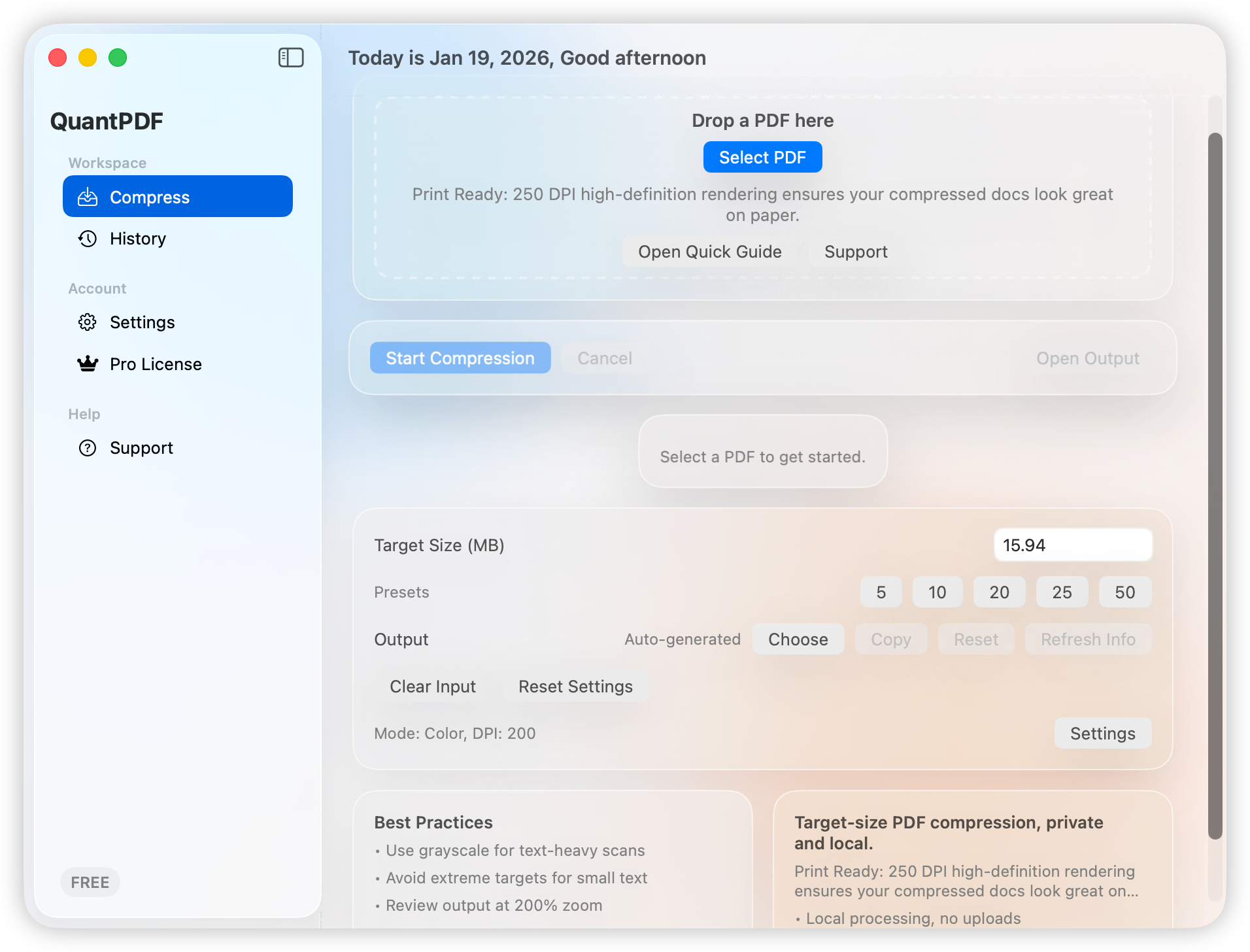
Using QuantPDF (a privacy-first Mac app), you can dial in the exact number:
- Open QuantPDF on your Mac.
- Drag and drop your large PDF file.
- Set the Target Size to 10MB (or 9.5MB to be safe).
- Click Compress.
The app uses an iterative process to find the highest possible quality that fits under your 10MB limit.
Tips for High-Quality 10MB Files
If your file is huge (e.g., 100MB+ scan) and you need to get to 10MB, you’ll need to make some trade-offs. Here is the hierarchy of adjustments:
- DPI Optimization: Standard screens are 72 DPI, but for printing, you want higher. QuantPDF defaults to 200 DPI, which is the sweet spot for readable text and manageable file size.
- Grayscale Mode: If your document is text-heavy (like a contract or transcript), switch to Grayscale. This removes color data, often reducing file size by 30-50% instantly without hurting readability.
- Black & White: For pure text documents, this is the nuclear option. It can reduce massive files to kilobytes, but it removes all nuance. Use only if absolutely necessary.
Privacy Warning for Job Applications
Never upload your resume, passport, or transcripts to free online PDF compressors.
When you upload a file to a free “cloud” converted, you are often granting them rights to analyze your data (check their Terms of Service). For sensitive documents containing:
- Home addresses
- Phone numbers
- Social Security / ID numbers
- Employment history
Always use a local offline tool. QuantPDF processes everything on your own Mac. Your files never leave your computer.
Summary
Don’t let a “File Too Large” error cost you a job interview.
- Download a local tool like QuantPDF.
- Set your target to 10MB (or the specific portal limit).
- Verify the file opens and is readable.
- Upload with confidence.
QuantPDF Team PDF Optimization Experts
The engineering team behind QuantPDF, dedicated to privacy-first document processing solutions for macOS.
Related Articles
How to Compress PDF to 25MB: Complete Guide for Job Applications
Learn how to compress large scanned PDFs to exactly 25MB for job portals, government forms, and university submissions. Step-by-step guide with tips for maintaining quality.
Academic Thesis PDF Compression: Meeting University Portal Limits
How to compress your thesis, dissertation, or academic papers to meet university submission portal size limits without losing quality.
Does PDF Compression Reduce Quality? What You Need to Know
Understand how PDF compression affects quality, when quality loss is acceptable, and how to compress without making documents unreadable.
Ready to compress your PDFs?
Download QuantPDF and hit your target size with local, private processing.